
Repost license
Request authorization before reposting and retain the authorization code, original URL, and go/affiliate links.
Original URL:https://www.geekcorelab.com/post/wordpress-from-beginner-to-proficient-setting-up-wordpress
The commercial link is an authorized go short link that must stay on the reposted page. It records the source before sending readers to the original article.
Preface: To make the demonstration easier, the first few screenshots were captured using the Playground environment
Accessing the Dashboard
After setting up WordPress, click the second menu item in the top-right corner (Profile) or the second menu item in the top-left corner (Dashboard) to enter the WordPress dashboard
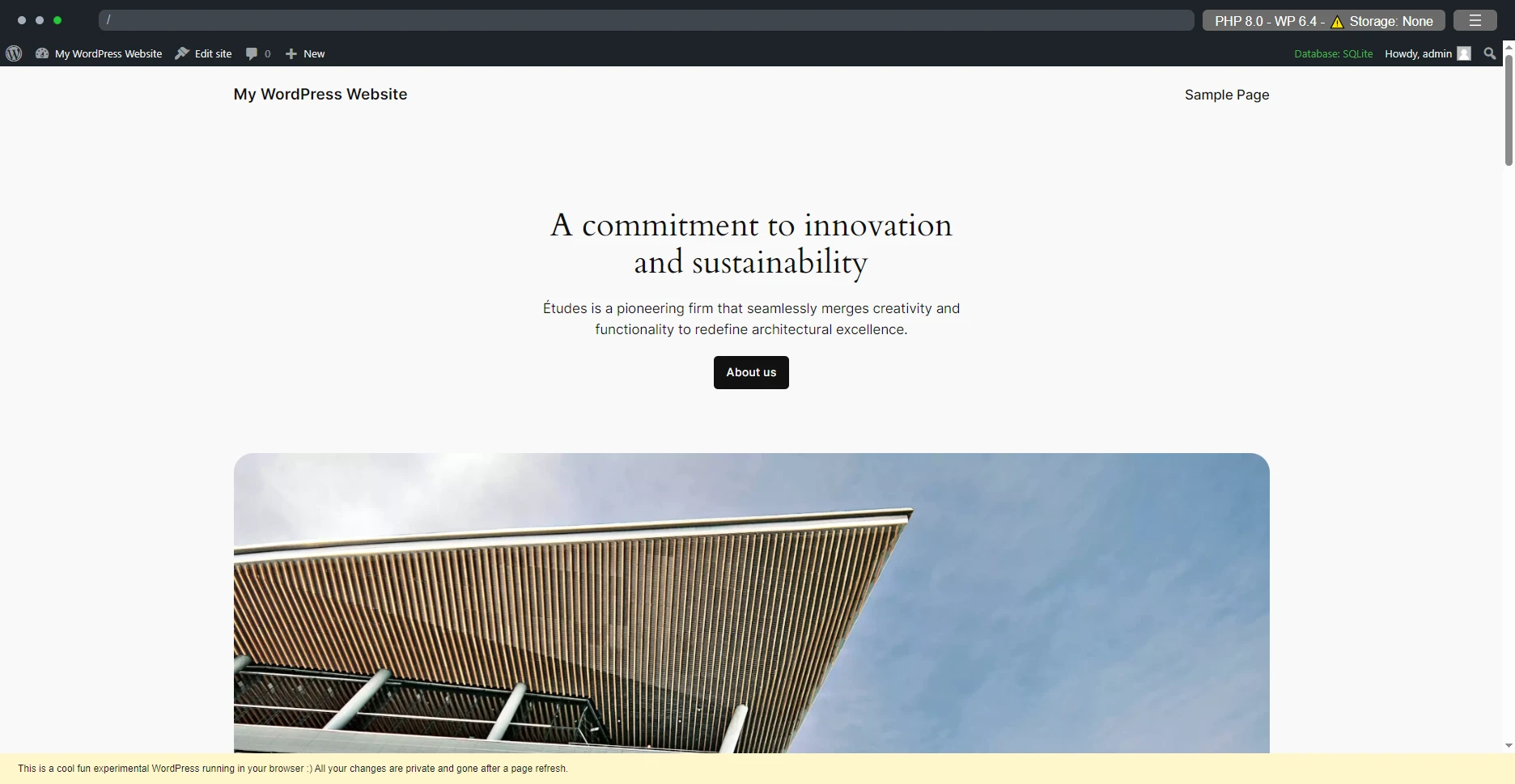
WordPress site homepage (default theme)
After entering the backend, you can see the feature list on the left, the Admin Bar at the top, and the main area in the center
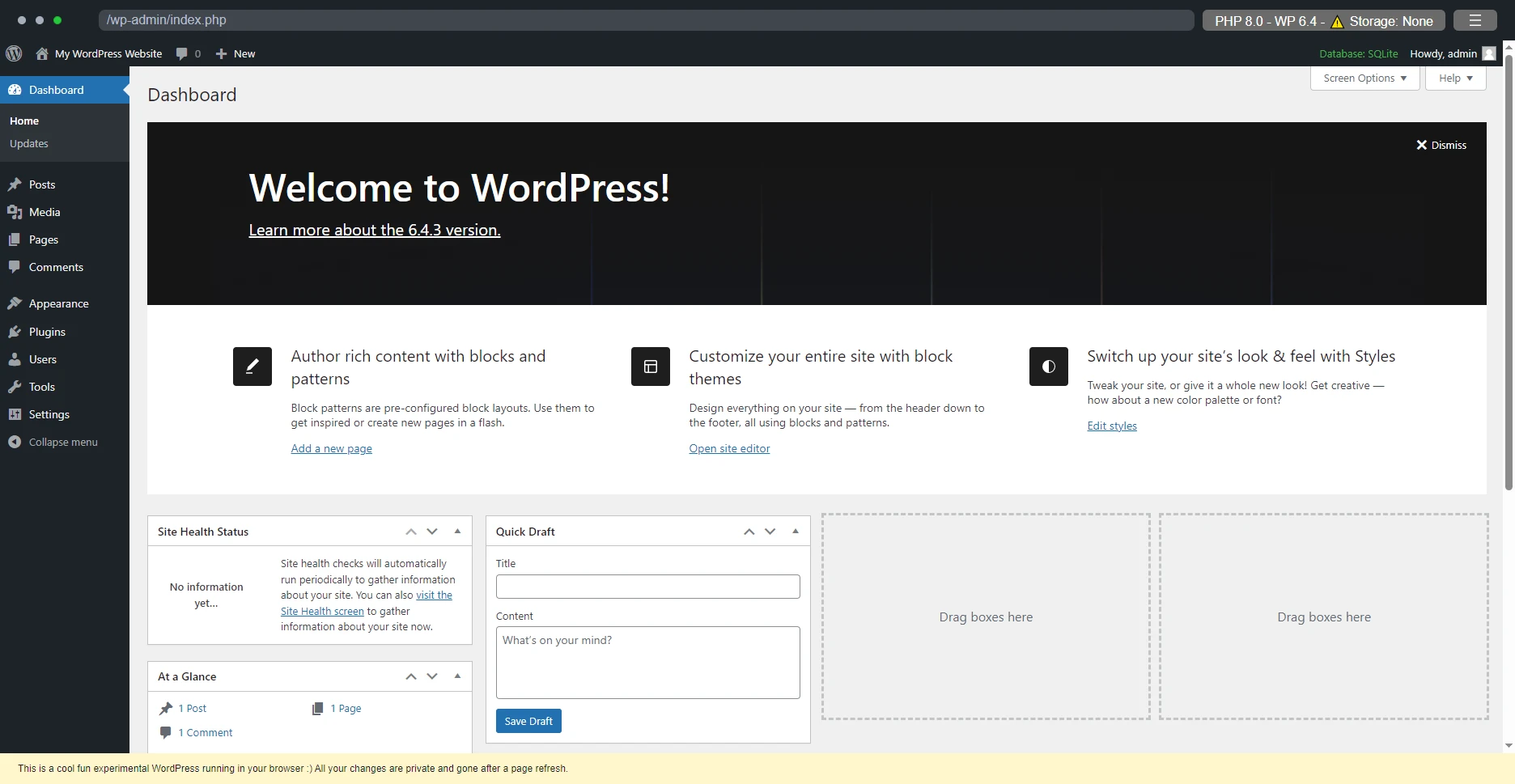
In the list on the left, you can find all currently available settings, features, tools, etc., while the Admin Bar at the top provides shortcuts to certain locations
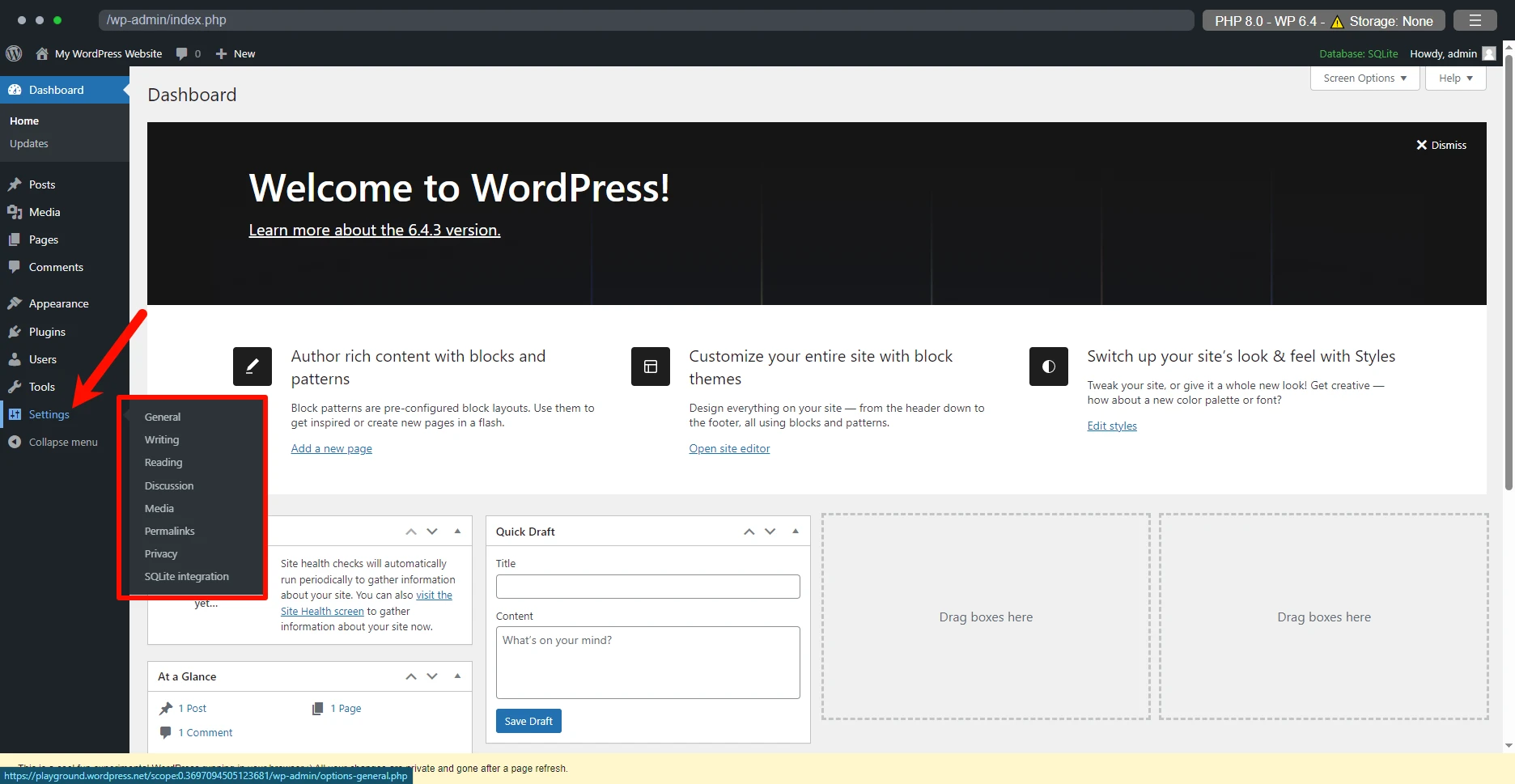
When you hover the mouse over Settings, a submenu appears on the right. We'll start with the "General" option
Can't get a response when hovering? Using a touchscreen device? Click here to view the solution
As shown in the GIF, hovering the mouse over the item above does not pop up a submenu. In this case, you just need to press and hold the main menu option, drag it a certain distance, and then release the mouse

Of course, the same applies to touchscreen devices; you can also use this method to force it to appear
However, WordPress has some special optimizations for devices such as phones and tablets that clearly use touchscreen operation. When using such devices, WordPress no longer jumps to the first submenu item by default after clicking a main menu option if it has a submenu as before. Instead, it expands the submenu when you click the main menu option and collapses the submenu when you click the main menu option again
General Settings
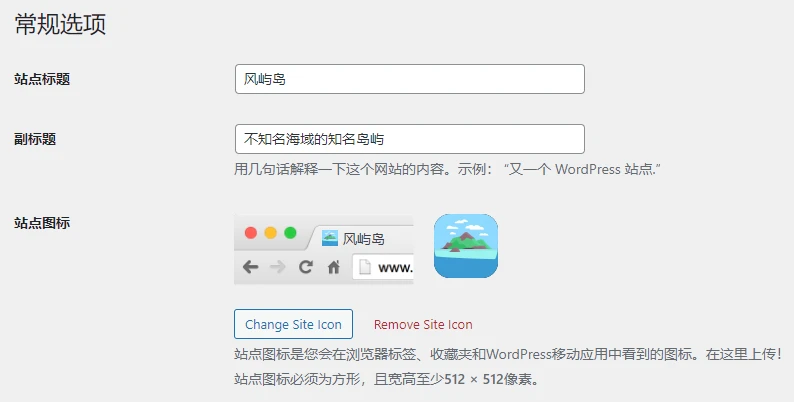
- Site Title: The title of your website. It should usually be relatively short, easy to read, and easy to remember, and its content should be appropriate for the site title
- Tagline: A site's tagline usually appears only in the homepage content, the homepage title, and SEO metadata
- Site Icon: Also known as favicon. Generally, visiting a website's domain/favicon.ico will return the website's icon (for example, Bilibili's icon: favicon.ico (32×32) (bilibili.com))
If you haven't set a site icon yet, it should look like this here:


- WordPress Address (URL): This is usually your website's URL. If your WordPress is installed in a subdirectory, it should look like this: https://www.example.com/wordpress/
- Site Address (URL): This is usually the same as the WordPress Address (URL), but if you have a page called home, you can set this option to https://www.example.com/home/ to redirect visitors accessing https://www.example.com to the home page (this option is slightly different from the "Your homepage displays" option)
Writing Settings
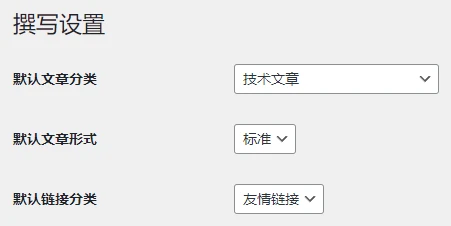
- Default post category: When publishing a new post without specifying a category, WordPress will automatically assign the post to this category (the default value for this option is "Uncategorized")
- Default post format: The format that a post should use when it is created. The default is Standard (not recommended to change unless there is a special need)
- Default link category: When creating a link using WordPress's built-in link manager, the link will be categorized under this category by default
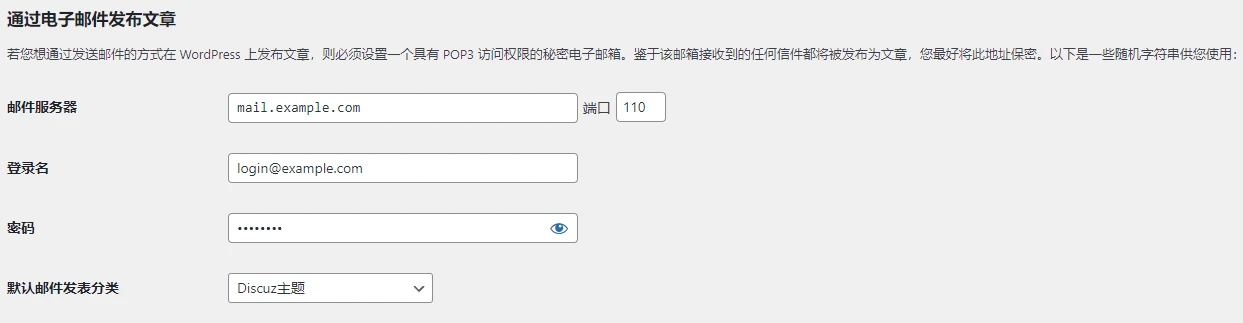
Publish posts by email: This feature is not commonly used, and WordPress official developers also consider it too outdated and plan to remove it in a future version. Therefore, if you need this functionality, it is recommended to use the Postie plugin.
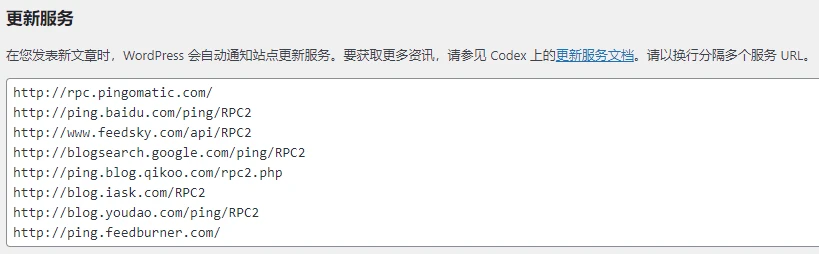
Update services allow WordPress to automatically perform ping operations after you publish a post. This can notify these sites that you have published a new post, which is beneficial for SEO in a sense
Reading Settings
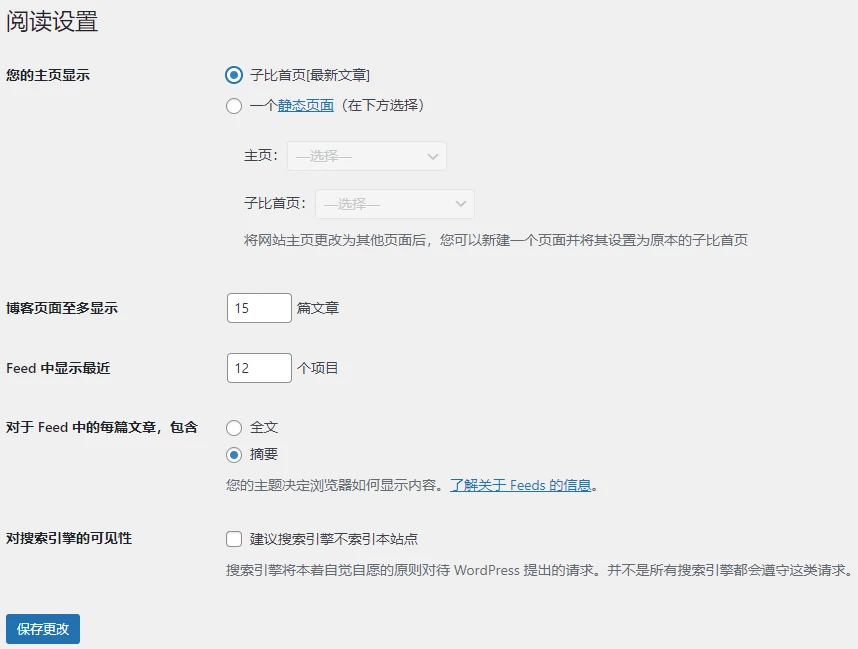
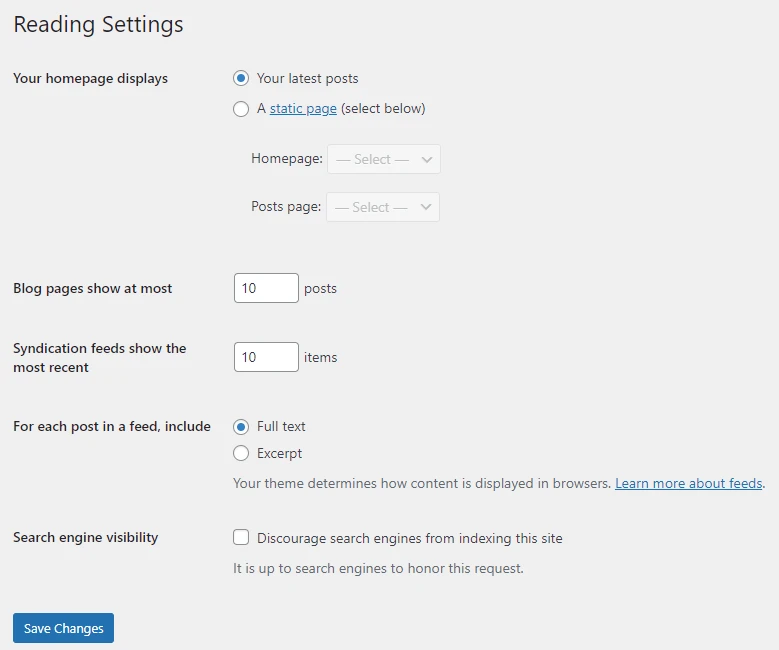
- Your homepage displays: In the screenshot of this site's backend, this option has been modified by the theme; the normal content should be the English page above (Playground environment). In this option, you can set your WordPress homepage to a static page instead of the latest posts. This is slightly different from the previously mentioned Site Address (URL) option: the Site Address (URL) cannot hide the page's real URL, but this option can (when visiting example.com/, the content returned is actually the content of the example.com/home/ page)
- Blog pages show at most: This controls the number of posts displayed when the site homepage shows the latest posts
- Syndication feeds show the most recent: A feed is a type of subscription. It can combine the latest n post titles and excerpts (or full content, depending on settings) from your site into a file in a specific format, and using an RSS reader can aggregate feed content from multiple sites, so you can quickly browse whether multiple subscribed sites have content updates using only the reader
- For each post in a feed, include: This option lets you choose whether the post body in the feed displays the post excerpt or the full text
- Search engine visibility: Checking this option tells search engine spiders noindex, so your site will not appear in the results of any compliant search engine
Discussion Settings
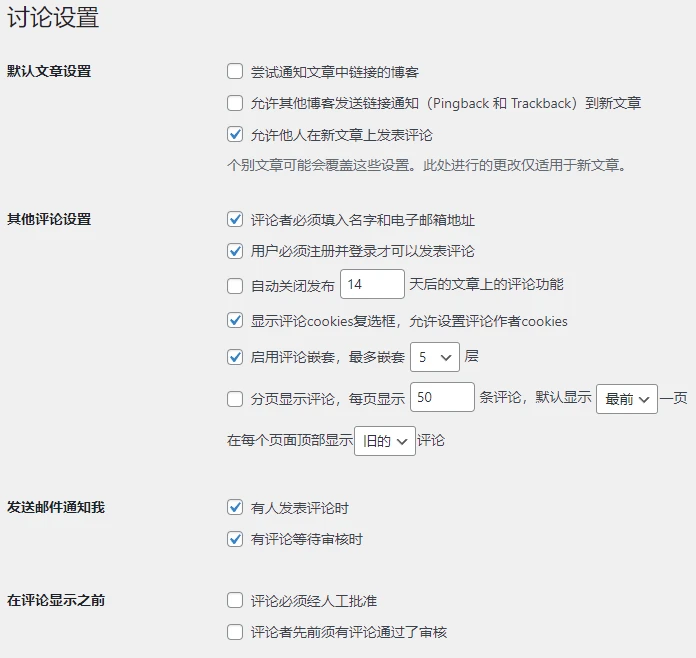
Most are self-explanatory, so no explanation is provided
Media Settings
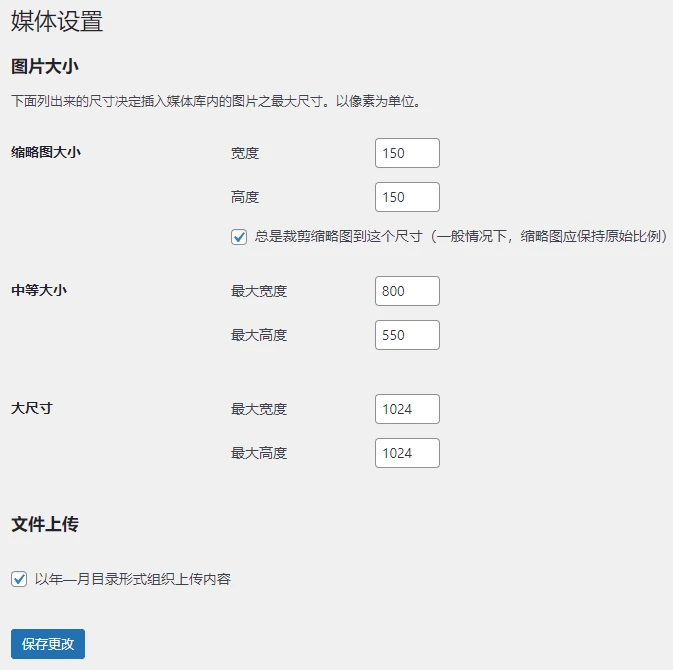
- Image sizes:
- Thumbnail size: This should be the smallest of the three. It is usually displayed in the media library list. To improve media loading speed, it is very small and usually has low quality
- Medium size: It is usually displayed in post lists or in search engine results
- Large size: I disabled it; I haven't found any use for it yet (using the plugin: Better image sizes)
- File uploads: Self-explanatory, so no explanation is provided
Permalinks
Each of these permalink formats has a corresponding example, but except for the first one (Plain), which does not require configuring rewrite rules, all other structures require rewrite rules to be configured before they can be used
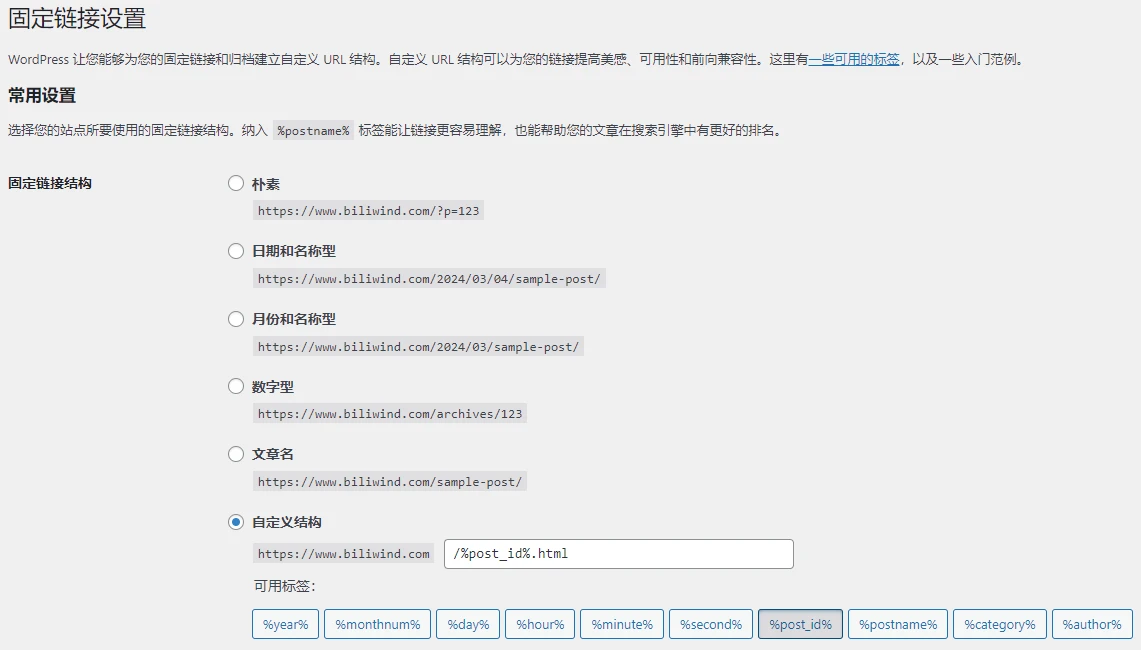
If you are using a web server application such as Apache or Litespeed that can recognize .htaccess files, WordPress should be able to complete this process automatically. If you are using a web server application such as Nginx, please find suitable rewrite rules yourself. Below are rewrite rule code snippets applicable to Nginx, OpenResty, Tengine, etc.
location /
{
	 try_files $uri $uri/ /index.php?$args;
}

rewrite /wp-admin$ $scheme://$host$uri/ permanent;
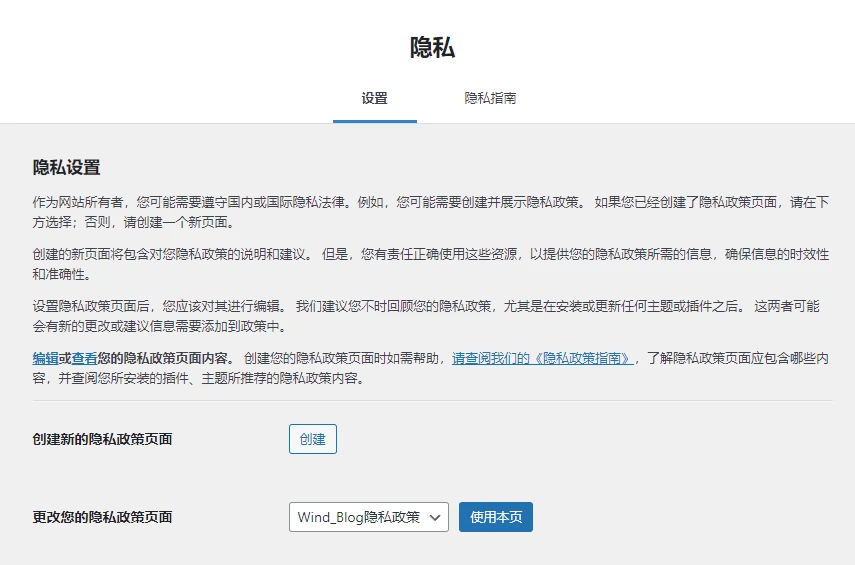
Privacy
Privacy settings can help you create a privacy policy for your site
Comments
Discussion
Be kind and keep the discussion friendly.
Discussion
0 comments