
For only 5 yuan, a step-by-step guide to training a Nahida GPT-SoVITS model
Repost license
Request authorization before reposting and retain the authorization code, original URL, and go/affiliate links.
Original URL:https://www.geekcorelab.com/post/only-5-yuan-teach-you-step-by-step-how-to-train-the-naxida
The commercial link is an authorized go short link that must stay on the reposted page. It records the source before sending readers to the original article.
Purchasing a server
First, we need to buy a GPU cloud server
I highly recommend 雨云, discount code: wp-admin
After successfully registering an account, go to: Purchase link
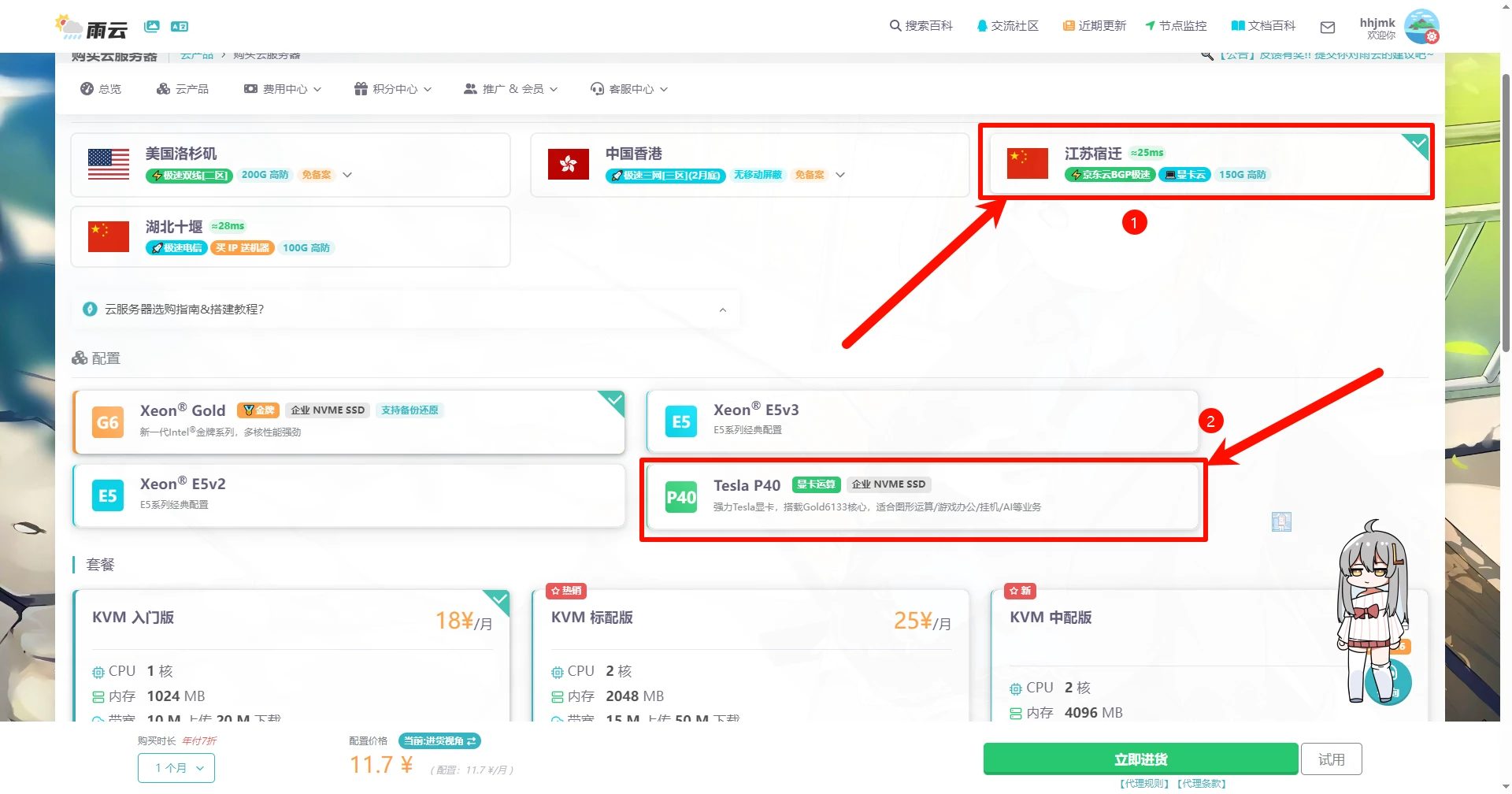
Select Suqian GPU Cloud
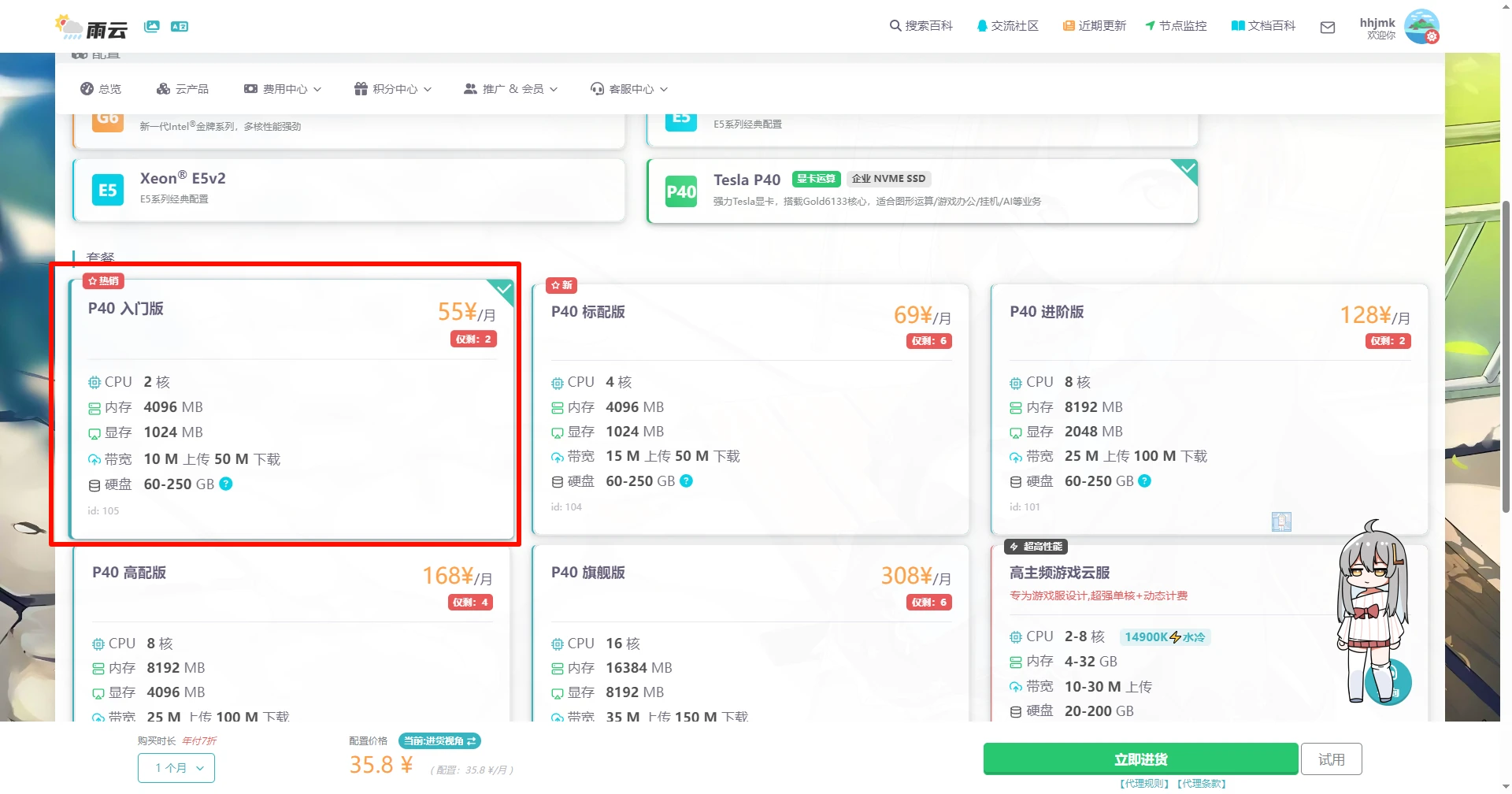
If you only need it for short-term use, it is recommended to choose the highest configuration; if for long-term use, choose according to your needs (mainly pay attention to VRAM)
For the system, select Windows Server 2022 Datacenter
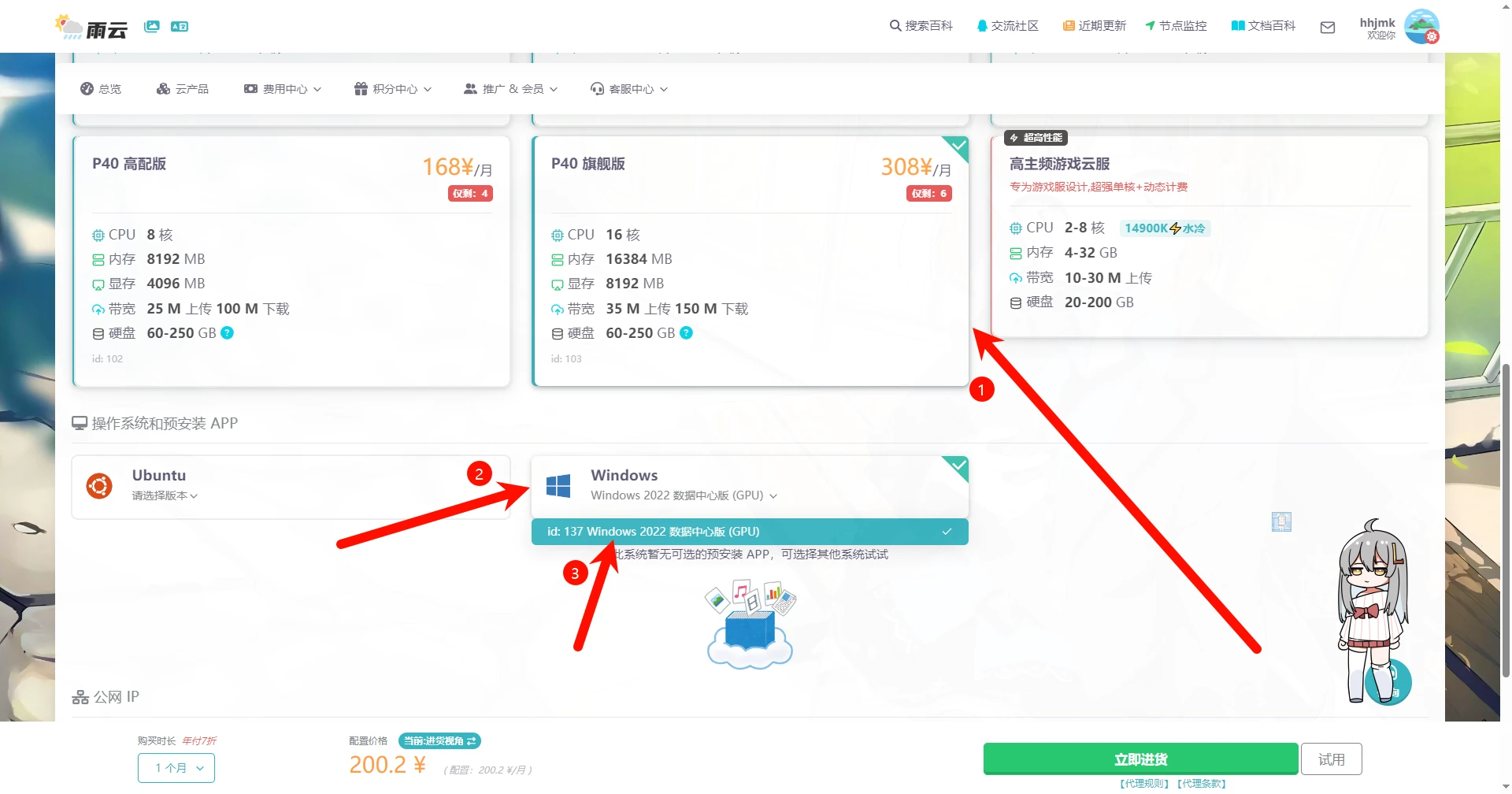
This system comes with the NVIDIA GPU driver preinstalled by default, CUDA is enabled, and the version is as follows:
NVIDIA-SMI 537.70, Driver Version: 537.70, CUDA Version: 12.2
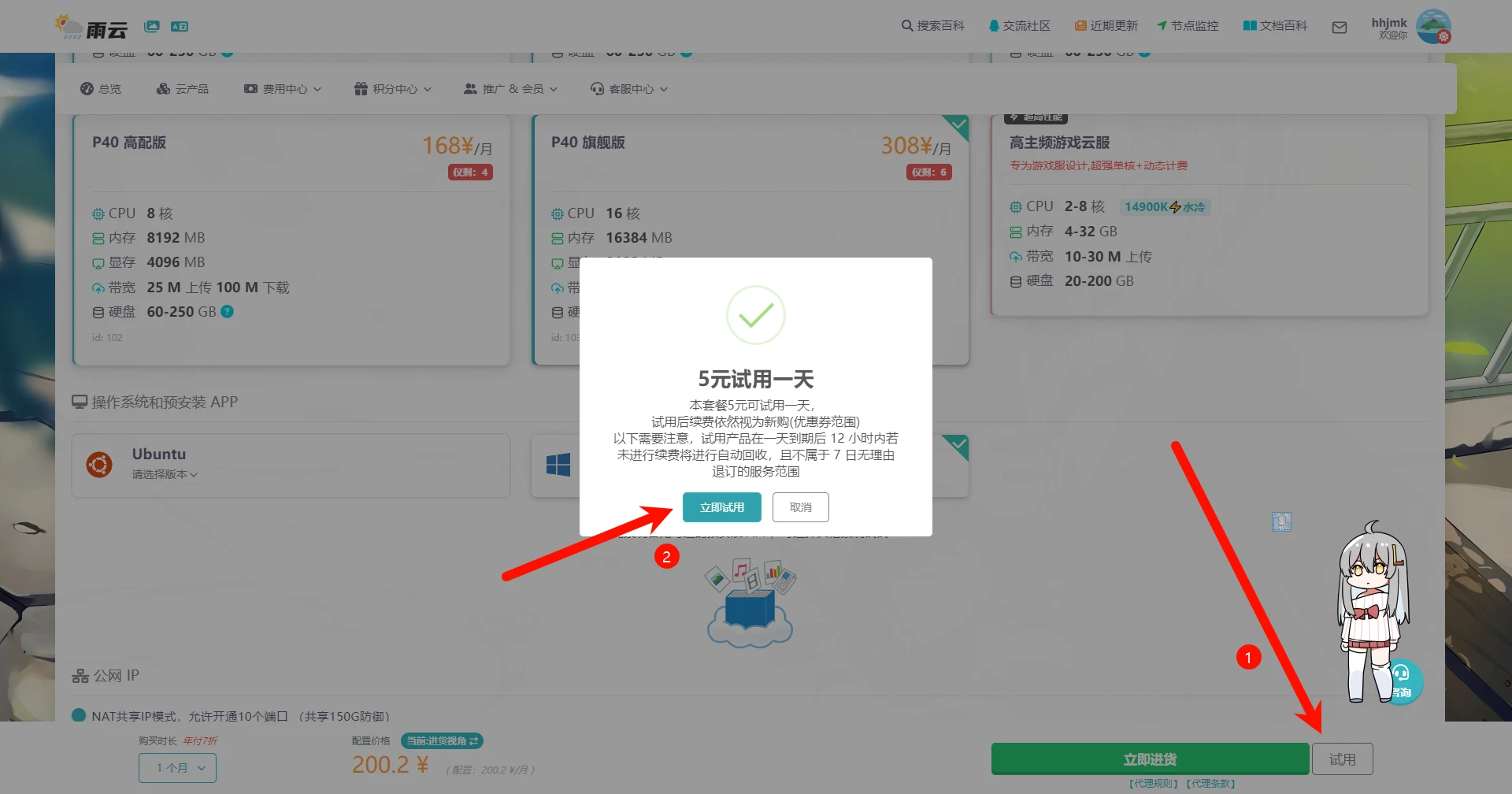
Then click Trial in the lower right corner to get one day of usage for 5 yuan
If GPU resources are insufficient, you can use a version with lower VRAM
Deploying GPT-SoVITS
Connecting to the server
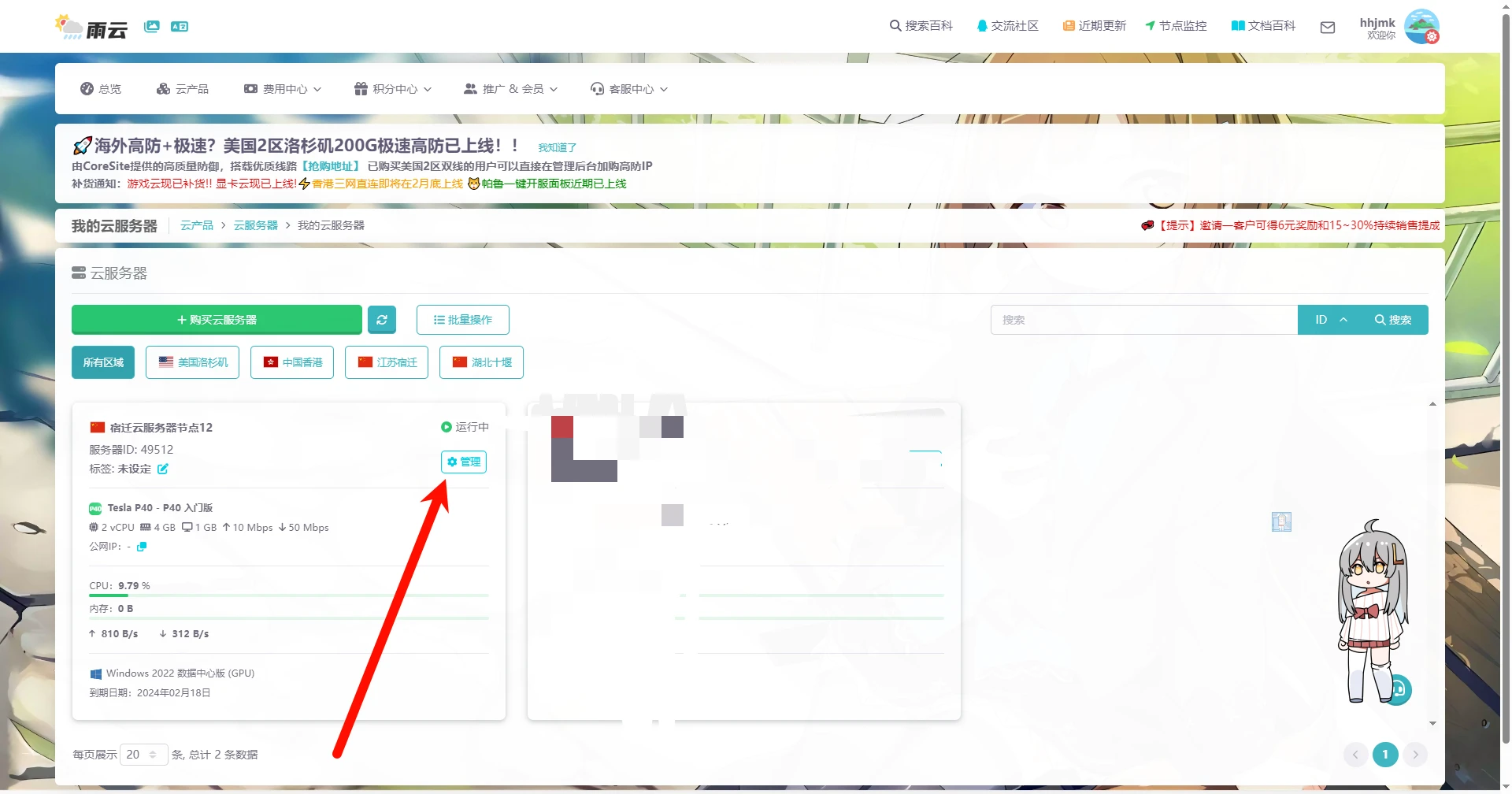
After the server is created, click Manage to enter the management panel
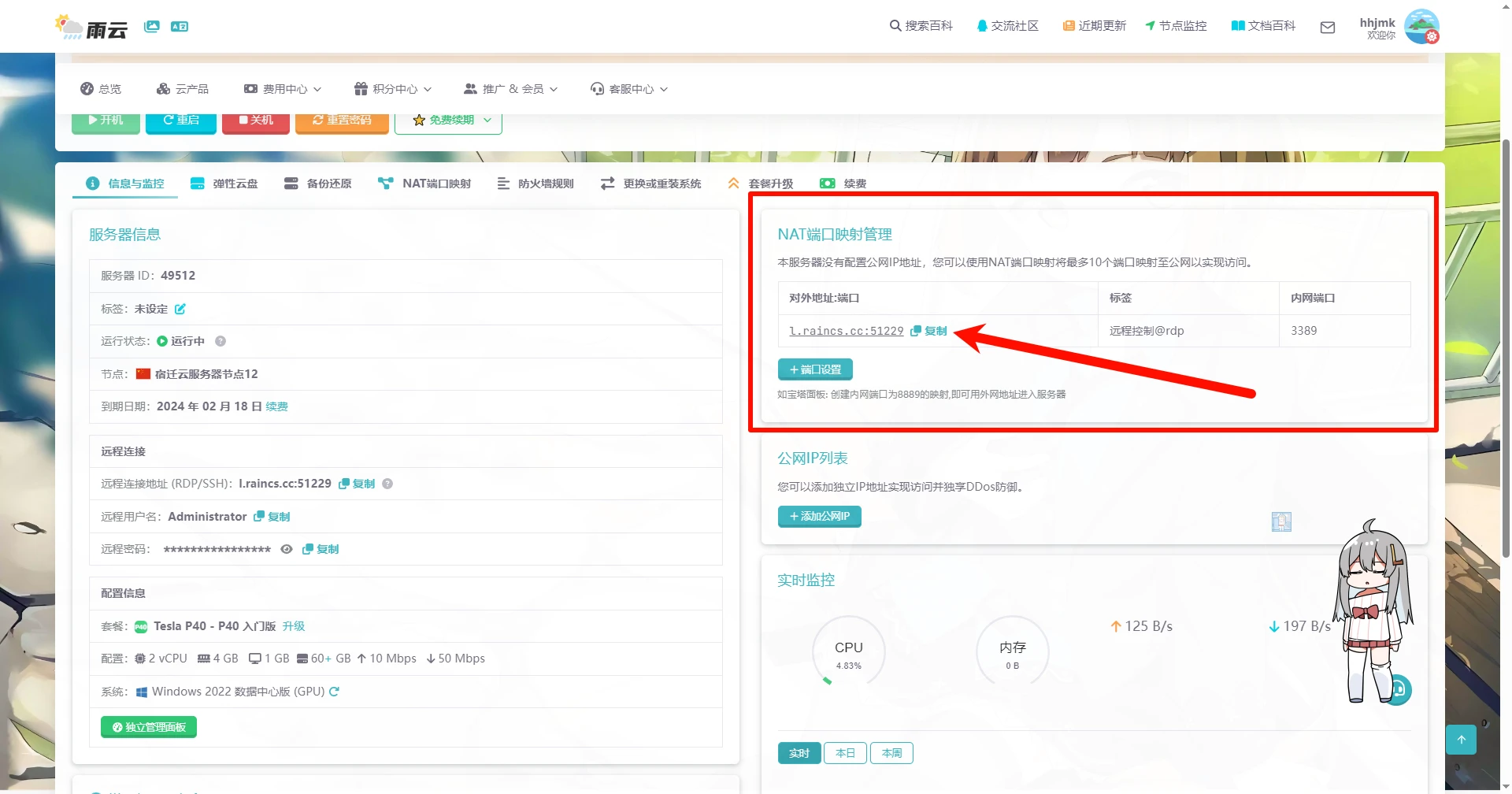
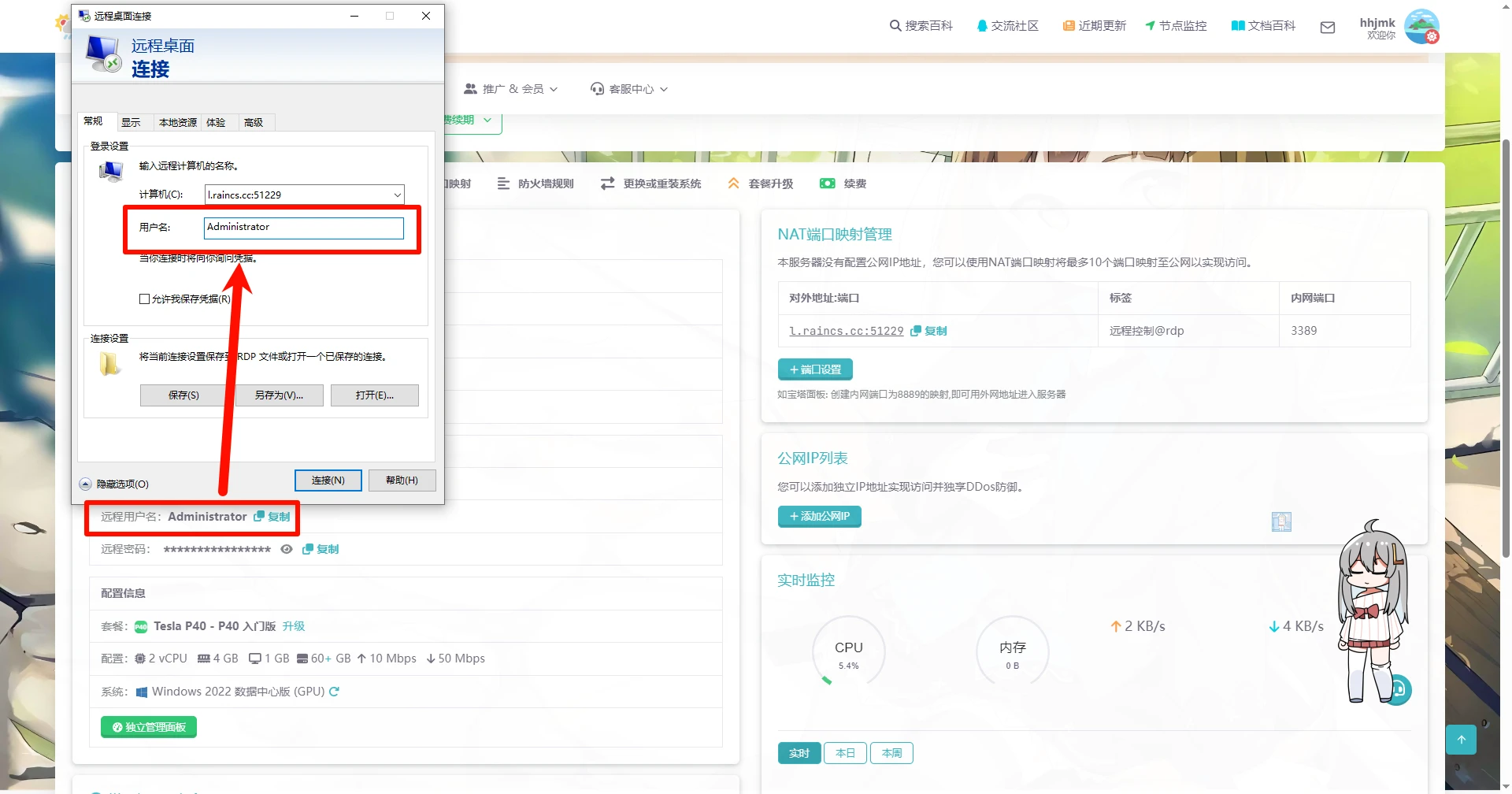
Find the NAT port mapping on the homepage and copy the default generated address
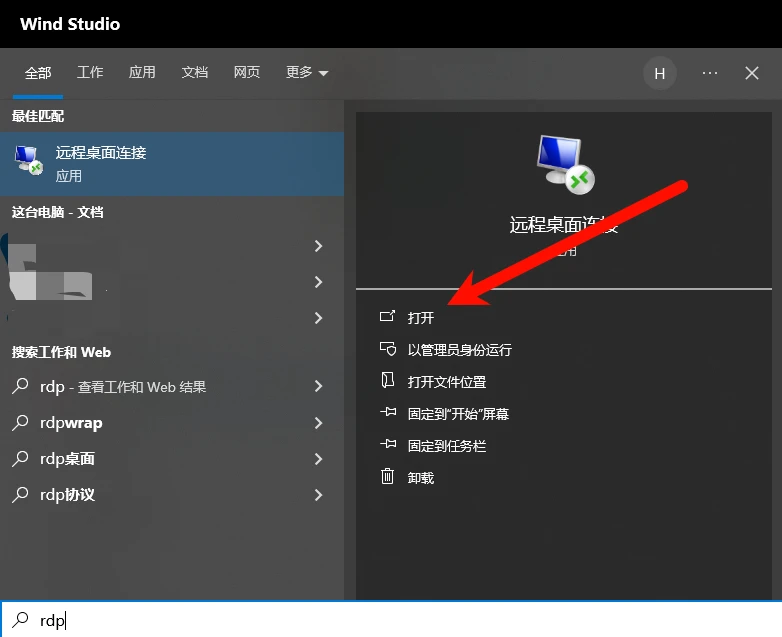
Then, on your own computer, search for rdp, find Remote Desktop Connection, and open it
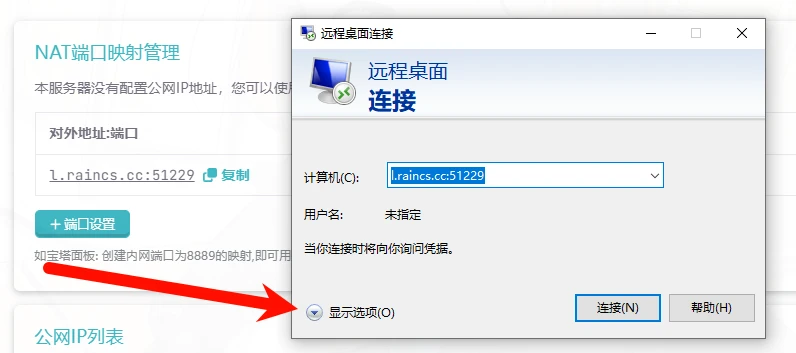
Fill the copied content into the "Computer" input box and click "Show Options"
Fill in the username here
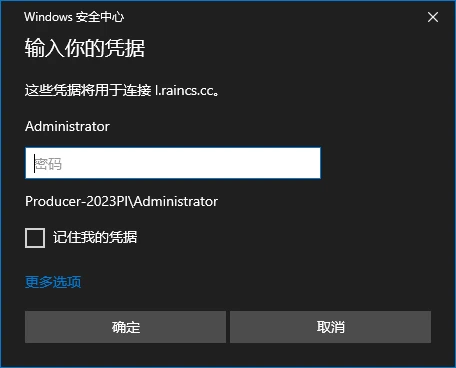
After clicking Connect, a password prompt will pop up
Copy and fill in the "Remote password"
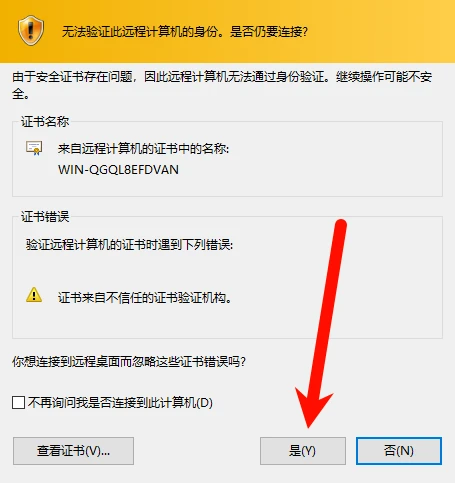
If you encounter the prompt shown below, just click Yes

Download
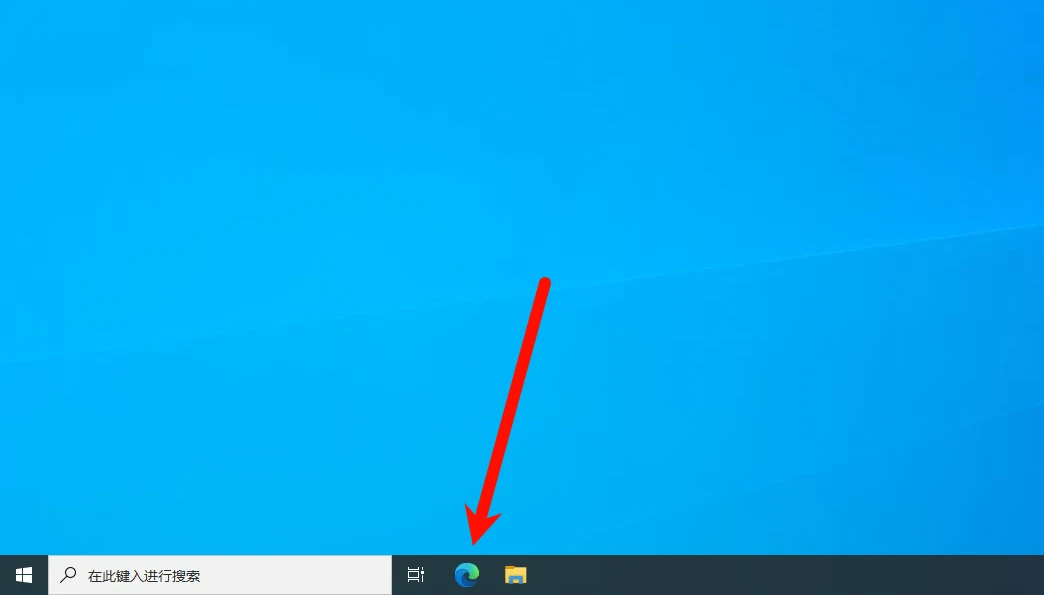
After entering the desktop, open a browser
Then open the one-click package I re-uploaded to 123Pan
If you want the latest version, you can use a VPN to download it from Hugging Face: Prepackaged file (huggingface.co)
After that, you also need to download Nahida's voice dataset, and an expert has already annotated it here: Nahida dataset download
Unusable address (it will return HTTP 414)
Then download an archive tool on the server (do not use bundleware such as 360 or 好压), available options include:
- Bandizip: Bandizip for Windows · The industry-leading file compression solution (bandisoft.com)
- 7-Zip: Download (7-zip.org)
When downloading, the progress gets stuck at 100% 0KB/s:
Open Edge's Settings - Privacy, search, and services
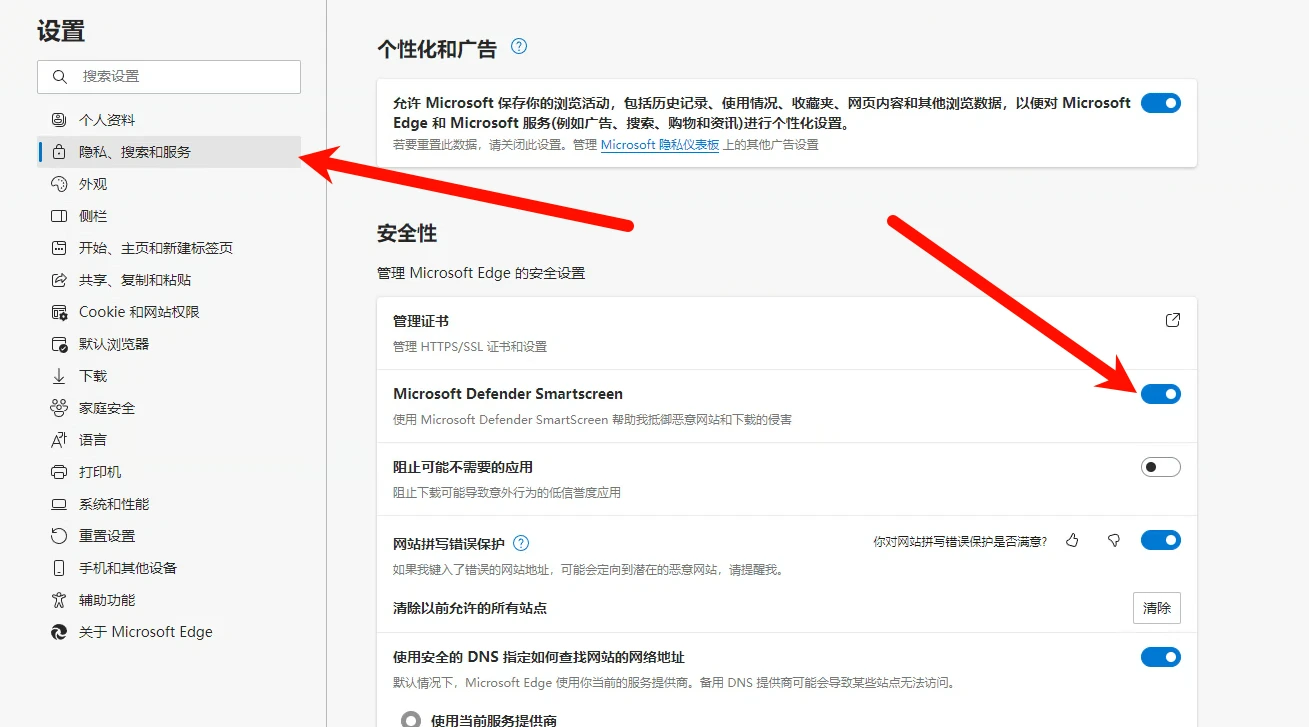
Just turn off Microsoft Defender Smartscreen (it scans files after download, causing it to get stuck at 100% 0KB/s)
Extracting
Extract the GPT-SoVITS one-click package
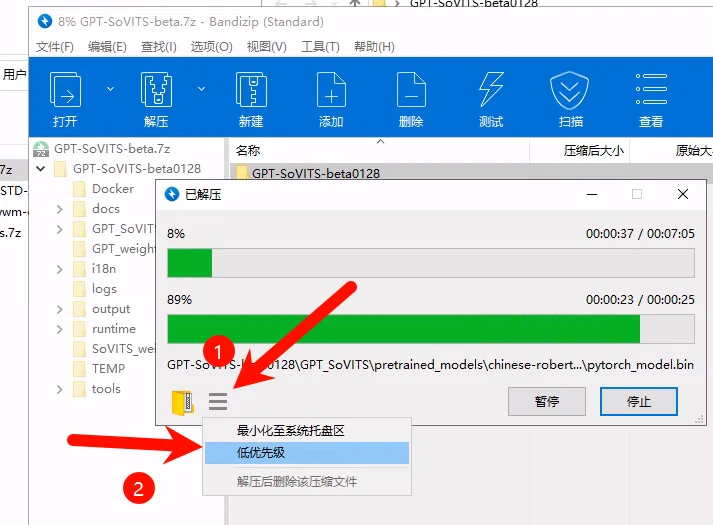
If you have other things to do (such as preparing a dataset), you can check Low Priority Mode
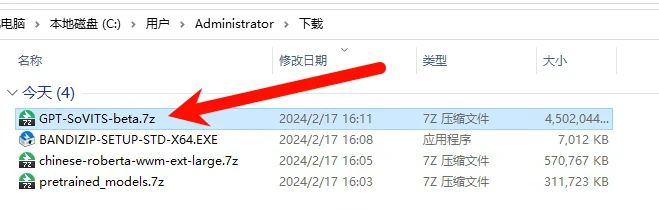
Just wait for GPT-SoVITS to finish extracting
Training Nahida's voice model
Generating nahida.list
Create a new raw_audio folder in the GPT-SoVITS directory to store the dataset
Extract the previously downloaded dataset into it, and it is recommended to place it in a separate folder (that is, create a new folder named nahida, then extract *.wav and *.lab into it)
The final directory structure should look like this:
GPT-SoVITS\raw_audio\nahida\*.wav
GPT-SoVITS\raw_audio\nahida\*.lab
Note
The .wav suffix indicates character voice
The .lab suffix indicates annotated files
Then open go-webui.bat in the GPT-SoVITS directory to open the web interface
After entering webui, directly modify the location indicated in the figure below
Replace it with the folder where your dataset (*.wav) is located, and if you follow this tutorial, change it to:
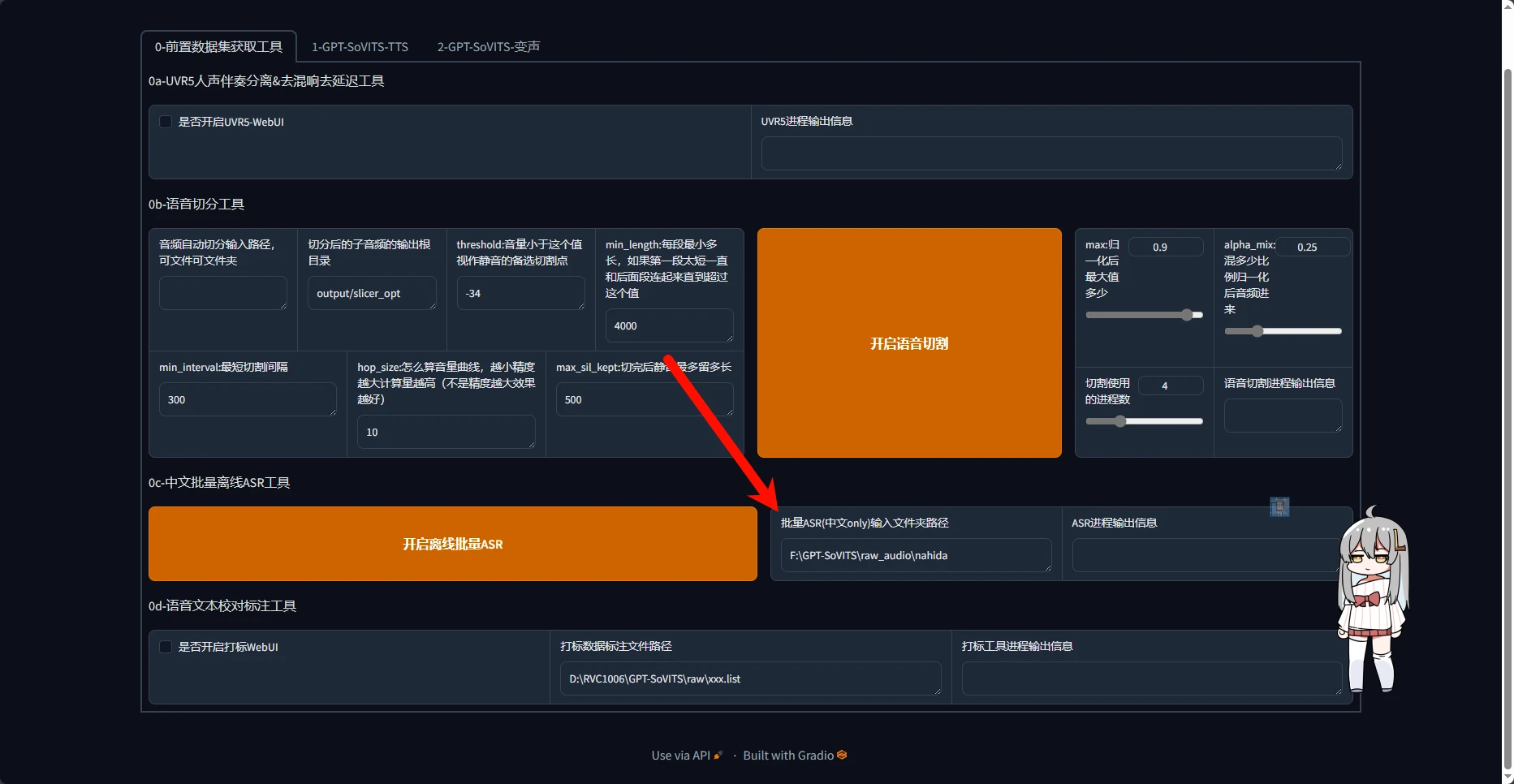
C:\Users\Administrator\Desktop\GPT-SoVITS-beta0128\raw_audio\nahida
Click Batch ASR and wait, and when the ASR process output shows completion, proceed to the next step
If you are still unsure whether it is complete, you can go to the output\asr_opt directory and open the nahida.list file
The figure above shows the result after completion
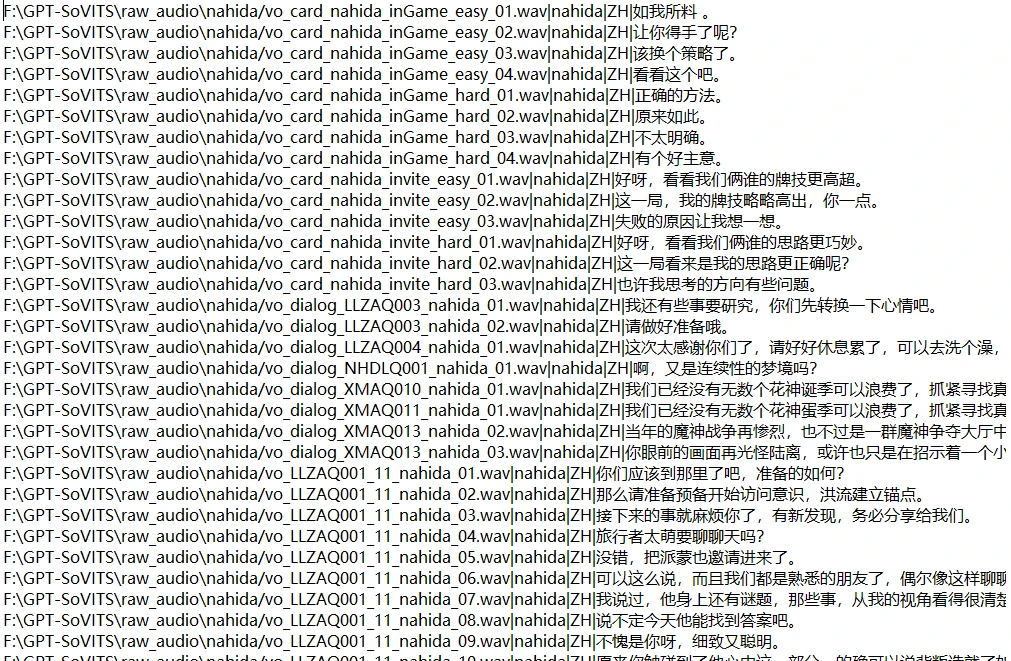
Preparing for training
Then open the second tab at the top and modify the content in the red boxes

If you follow this tutorial, the contents of the three boxes in the figure below should be
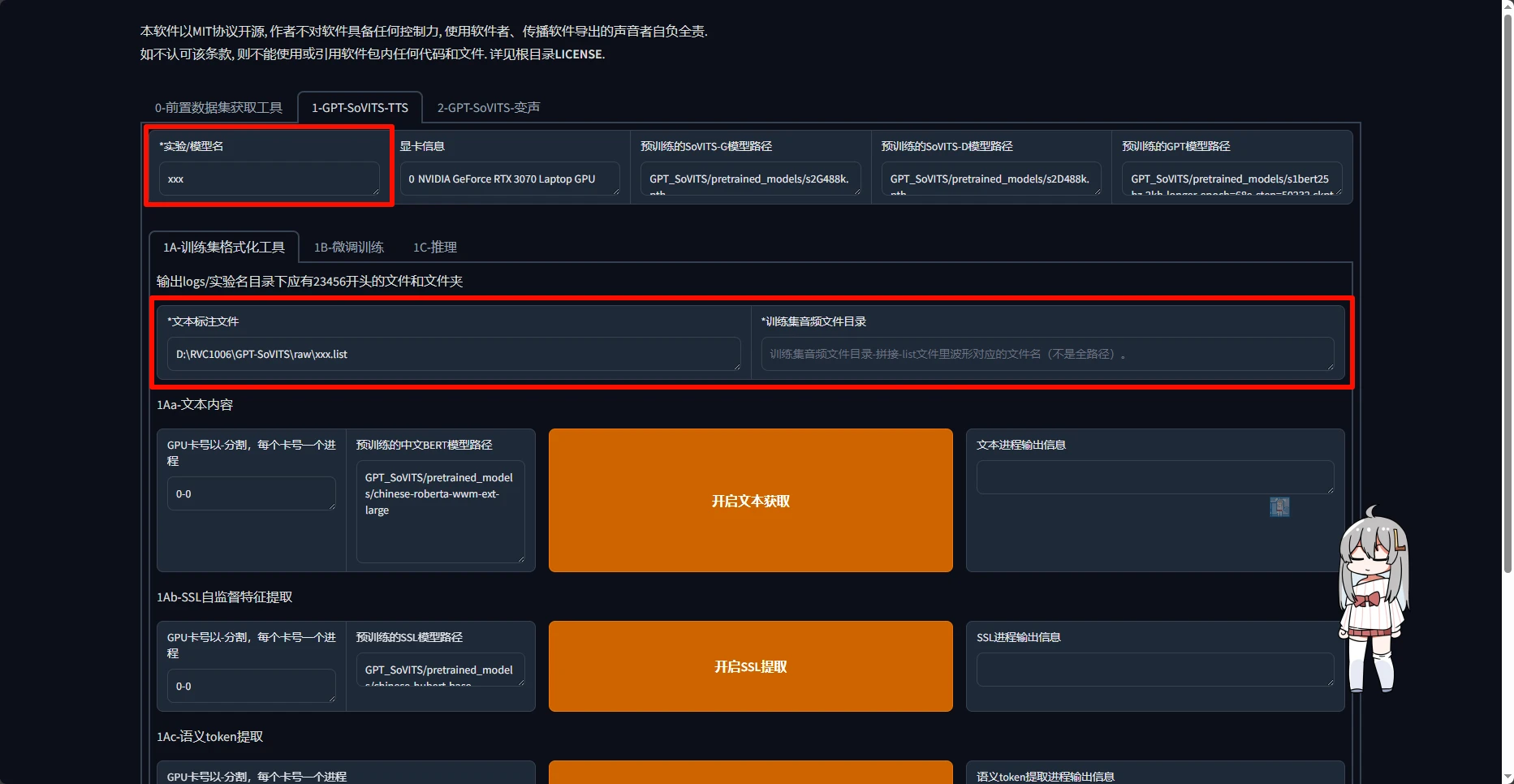
- nahida
- C:\Users\Administrator\Desktop\GPT-SoVITS-beta0128\output\asr_opt\nahida.list
- C:\Users\Administrator\Desktop\GPT-SoVITS-beta0128\raw_audio\nahida
Then perform the following 8 steps in order
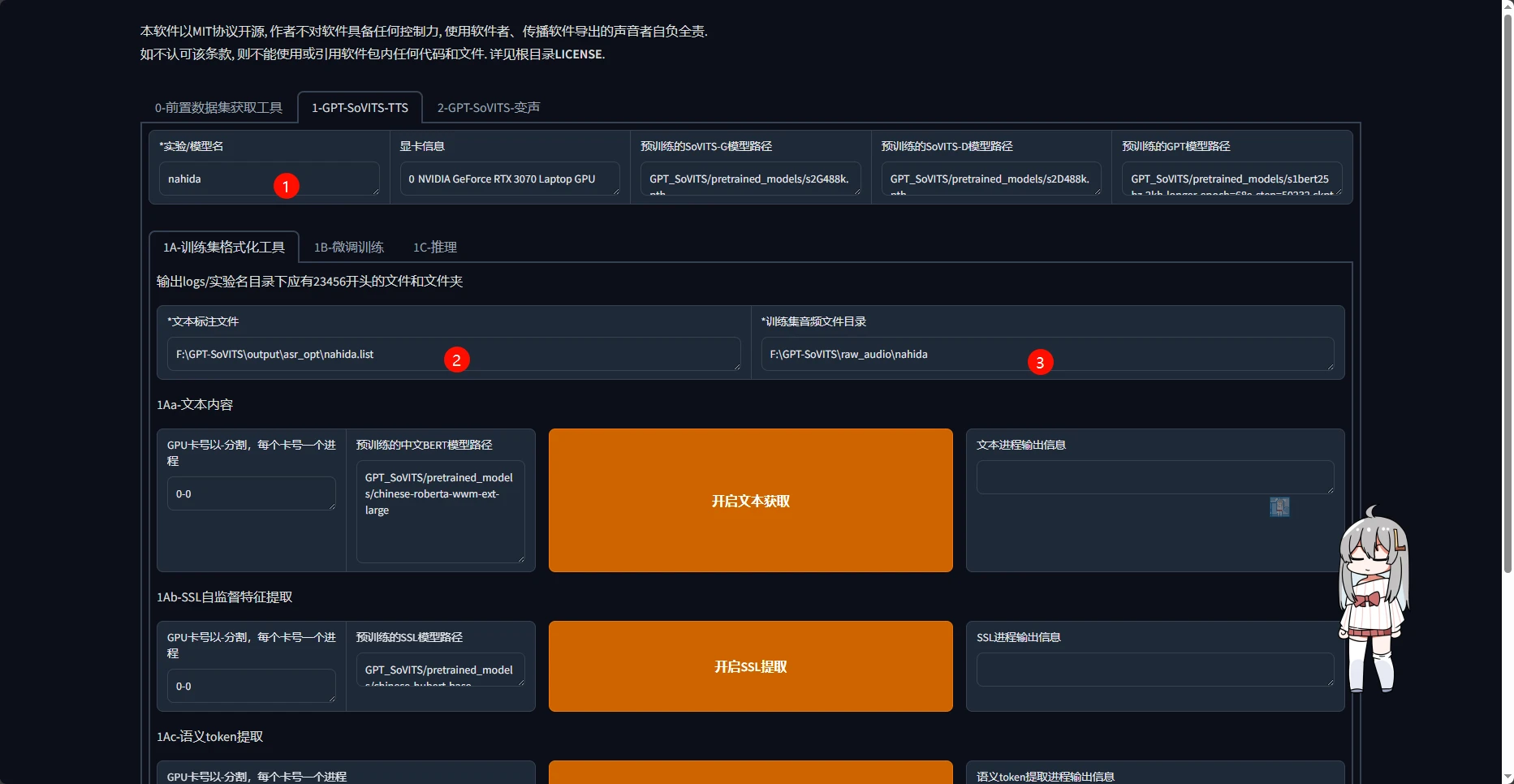
Example: click the button for 1 and wait until 2 indicates the task is complete, then continue by clicking 3 and observing 4, and repeat in this way
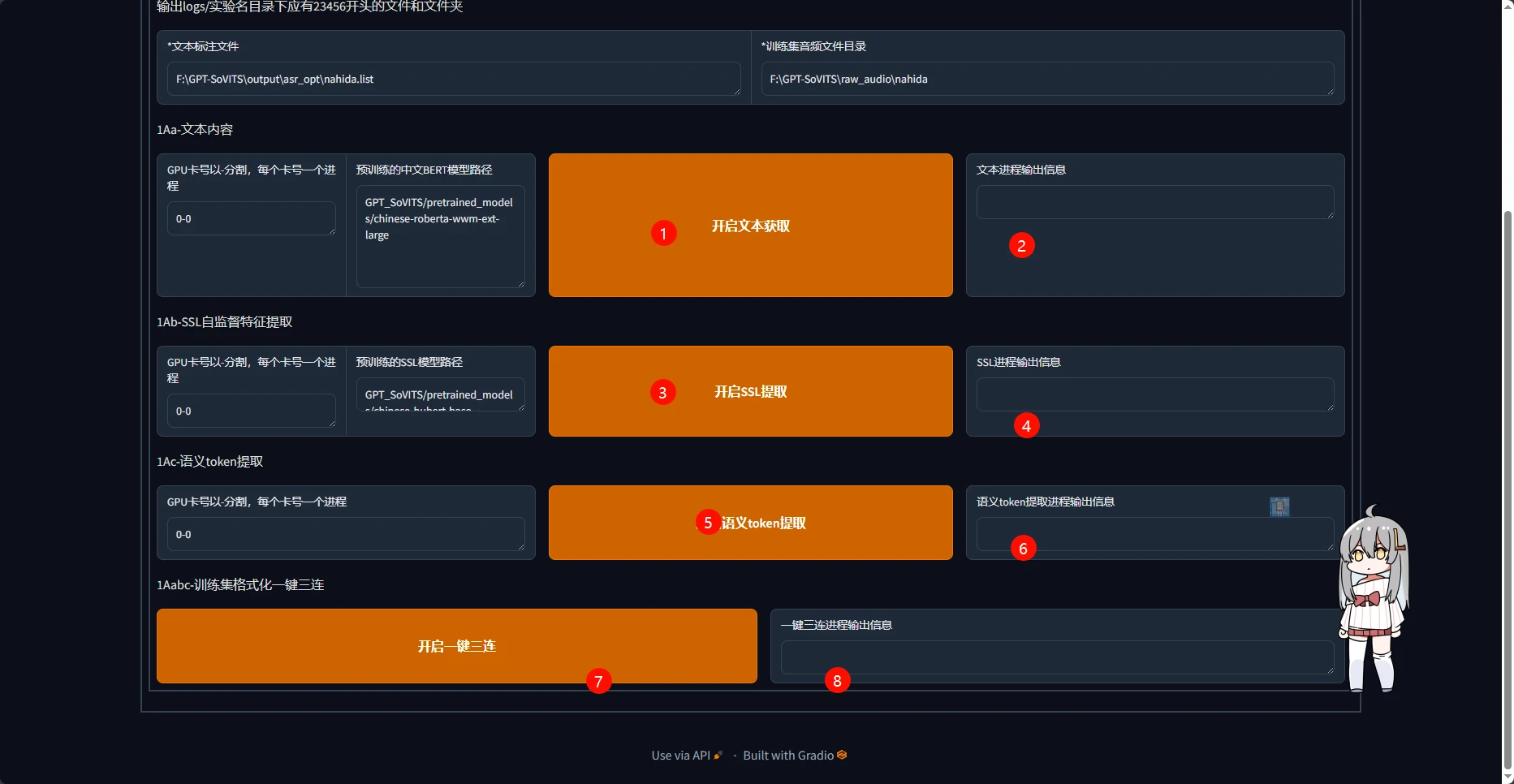
According to an expert, you can directly click 7 here (enable One-click Three-in-One)
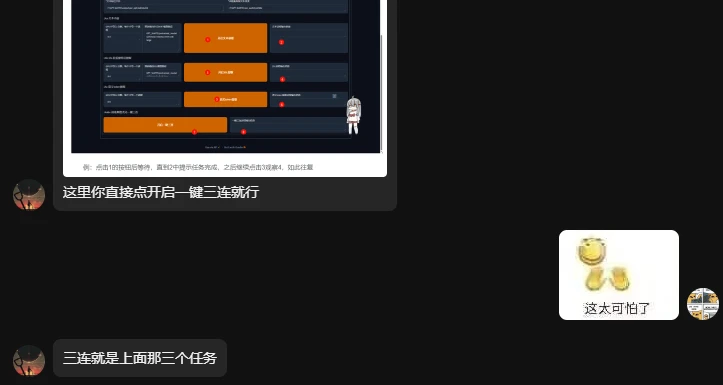
SoVITS and GPT training
Then open the second tab of this tab
batch_size should be adjusted according to the VRAM size and model data volume; if using an 8G VRAM plan, keep all settings at default
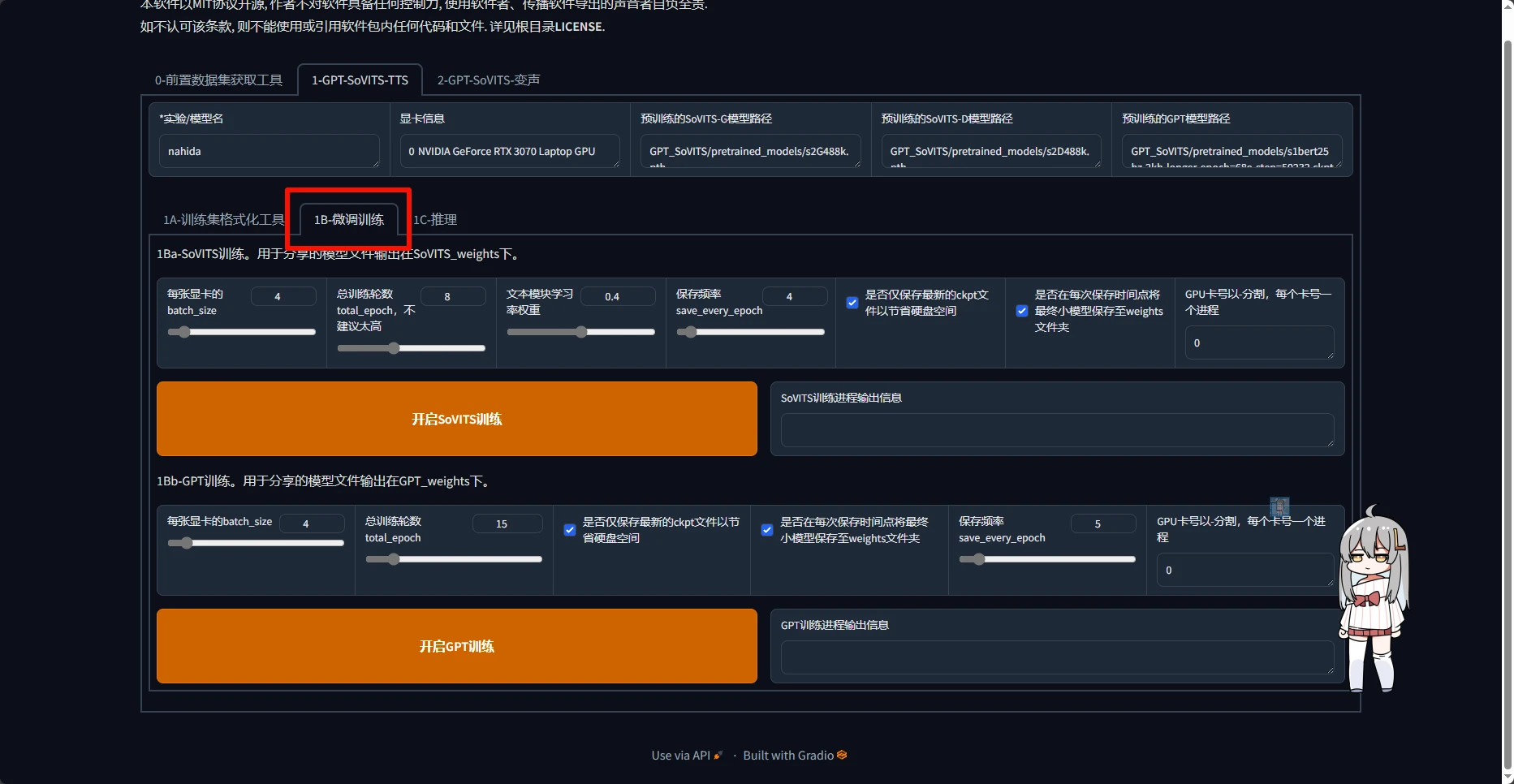
You need to perform SoVITS training and GPT training separately, and inference can only be performed after both trainings are complete
TTS audio inference
After the TTS inference WebUI process output indicates that the process has started, wait about 1 minute for the model to load
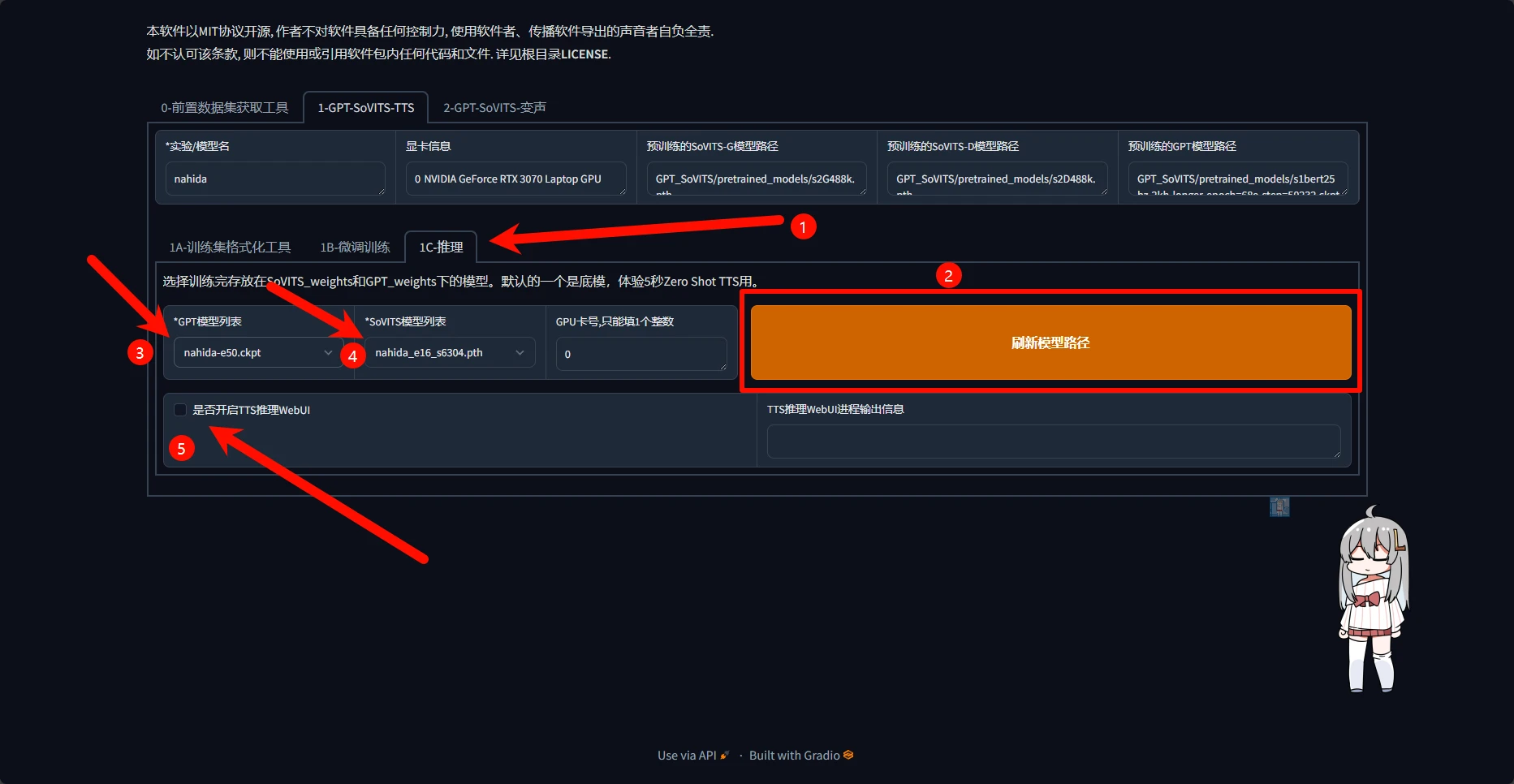
After the model is loaded, the TTS inference webui will open automatically; the following is an introduction to the main functional areas
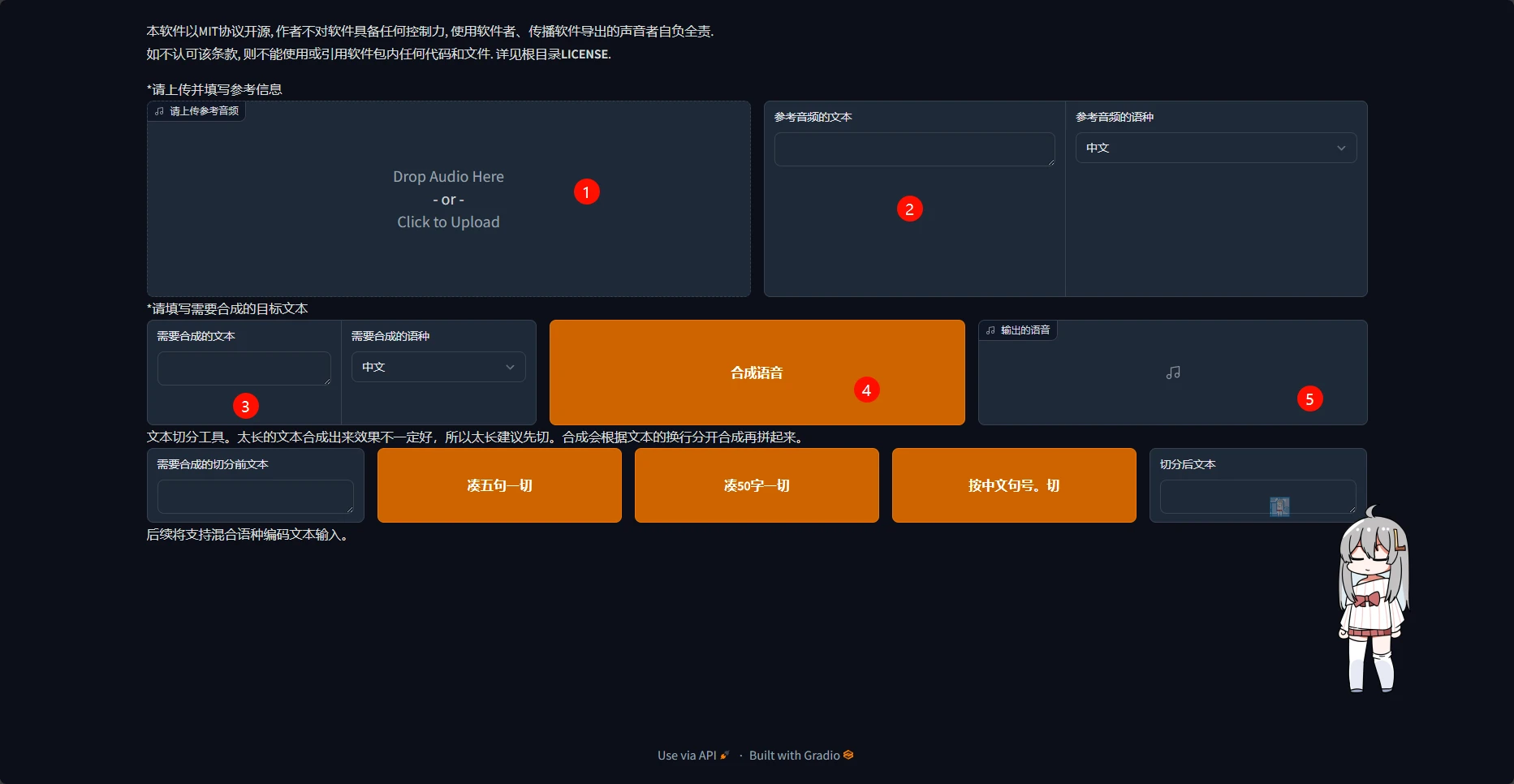
- The place to put the reference audio (it affects the tone and emotion of the final inferred audio)
- What is said in the reference audio
- What text you want to convert to speech
- Convert the content in 3 to speech
- The audio output after clicking 4
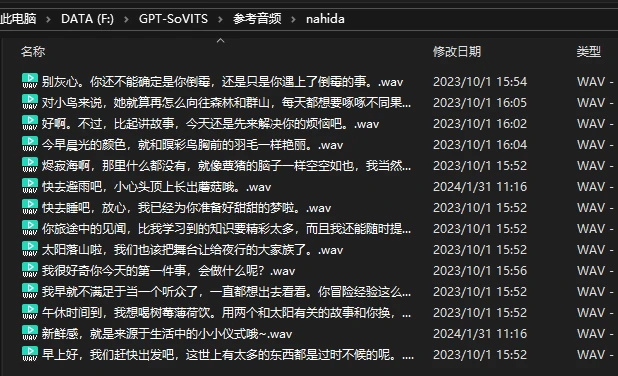
For the reference audio, you can randomly find some slightly longer audio clips in the dataset
Long-text synthesis effect:
Comments
Discussion
Be kind and keep the discussion friendly.
Discussion
0 comments